คำแนะนำปิดการเล่น Music Videos บน Spotify
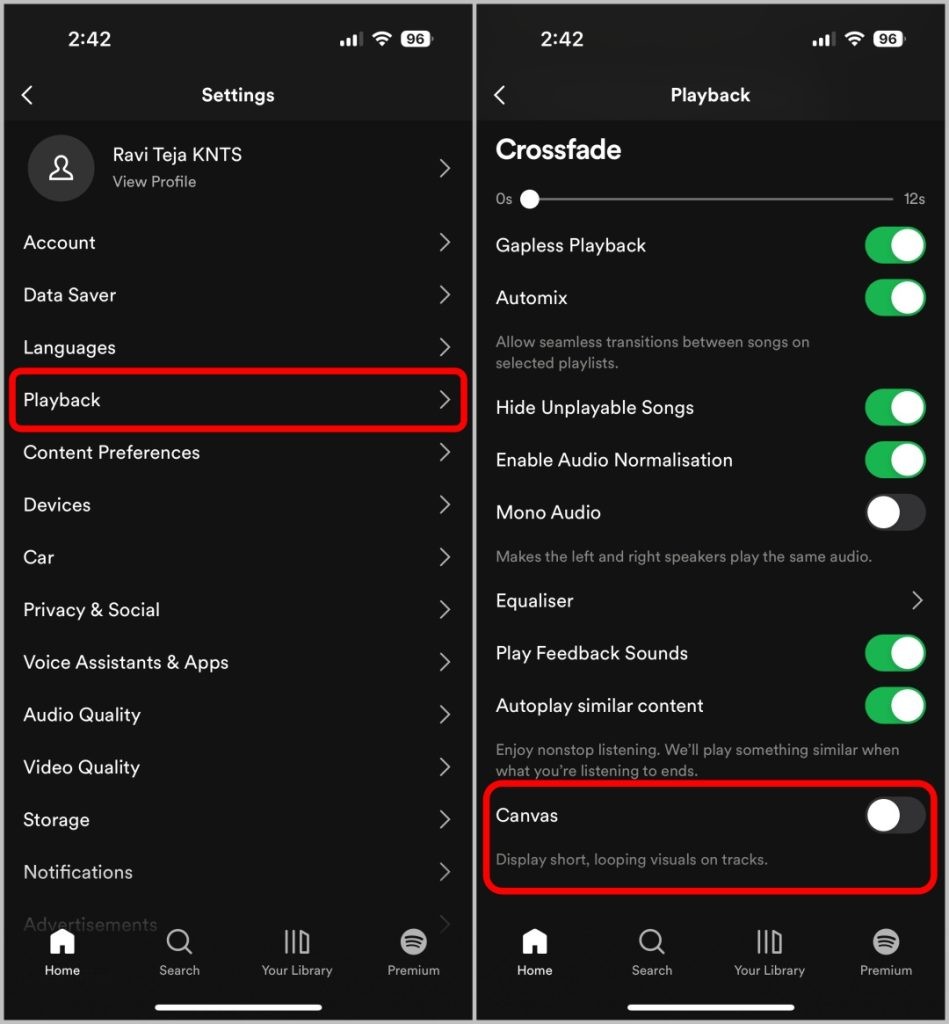
การปิดการแสดง Music Videos บน Spotify
บทวิเคราะห์เชิงลึกด้านเทคโนโลยีและธุรกิจ
การเปิดตัว Music Videos แบบ Full-Length ถือเป็นกลยุทธ์ของ Spotify ในการแข่งขันกับแพลตฟอร์มวิดีโอสตรีมมิ่ง แต่กลับส่งผลกระทบต่อประสบการณ์ผู้ใช้ที่เน้นคุณภาพเสียงระดับ Lossless โดยเฉพาะกลุ่ม Premium Subscribers ซึ่งเป็นฐานลูกค้าหลัก ข้อร้องเรียนที่เกิดขึ้นสะท้อนให้เห็นถึงความขัดแย้งระหว่างนโยบายธุรกิจที่ต้องการเพิ่ม Engagement ผ่านวิดีโอ กับการรักษา Core Value ของแพลตฟอร์มที่เน้น Audio-First
จากข้อมูลใน Reddit และ Community Forum พบว่า:
– ผู้ใช้ Premium บ่นถึงคุณภาพเสียงที่ลดลงเมื่อเปิดวิดีโอ (Audio Compression)
– พ่อแม่ผู้ปกครองต้องการฟังก์ชัน Parental Control แบบ Audio-Only โดยใช้ PIN
– UI ที่ออกแบบให้วิดีโอเด่นเกินไป ทำให้เสียสมาธิและลดความสวยงามของ Artist Profile
วิธีการปิด Music Videos (Manual Fixes)
บน Desktop (Windows/Mac)
- เปิดการตั้งค่า (Settings)
- เลือก Display
- เปิด “Show the now-playing panel on click of play”
- คลิกปุ่ม “Switch to Audio” ที่ Now Playing View
บน Mobile (iOS/Android)
- ไปที่ Settings > Display
- ปิด “Display short, looping visuals on tracks (Canvas)”
ข้อจำกัด
- Spotify ยังไม่มีปุ่มถาวรให้ปิด Music Videos ทั้งหมด
- การตั้งค่าข้างต้นเป็นการเปลี่ยน View เท่านั้น หากเปิด Now Playing View ใหม่ วิดีโอจะแสดงอีกครั้ง
คำถามที่พบบ่อย (FAQs)
Full English Translation
How to Disable Music Videos on Spotify – Source: Reddit & Spotify Community
Deep Tech & Business Analysis
The launch of Full-Length Music Videos represents Spotify’s strategy to compete with video streaming platforms, but it negatively impacts users who prioritize Lossless audio quality, especially Premium subscribers. Complaints highlight a conflict between business goals to increase engagement through video and maintaining an Audio-First core value.
From Reddit and Community Forum data:
– Premium users complain about reduced audio quality when video plays (Audio Compression)
– Parents need an Audio-Only Parental Control feature with PIN protection
– UI design overly emphasizes video, causing distraction and degrading Artist Profile aesthetics
How to Disable Music Videos (Manual Fixes)
Desktop (Windows/Mac)
1. Go to Settings
2. Select Display
3. Enable “Show the now-playing panel on click of play”
4. Click “Switch to Audio” on the Now Playing View
Mobile (iOS/Android)
1. Go to Settings > Display
2. Disable “Display short, looping visuals on tracks (Canvas)”
Limitations
– Spotify has no permanent toggle to completely disable Music Videos
– The above settings only change the view; reopening Now Playing View will show videos again
Frequently Asked Questions
Q: Why doesn’t Spotify allow permanent disabling of Music Videos?
A: Because Spotify is experimenting with video as a core feature to increase user time and compete with YouTube Music. Adding a permanent disable button could reduce overall platform engagement.
Q: Does playing videos on Spotify affect audio quality?
A: Yes. According to Premium user reports on the Community Forum, playing Music Videos with Lossy Compression reduces audio quality compared to Audio-Only mode, which supports Lossless High-Resolution Audio.
Citation Link:
– https://community.spotify.com/t5/Desktop-Windows/Disable-Video-on-desktop-app/td-p/6980962